If you are getting a message when printing to select the paper type or size, that is often because the paper tray has been changed to a different paper type (such as thick). To resolve this, we need to set that paper tray back to plain paper.
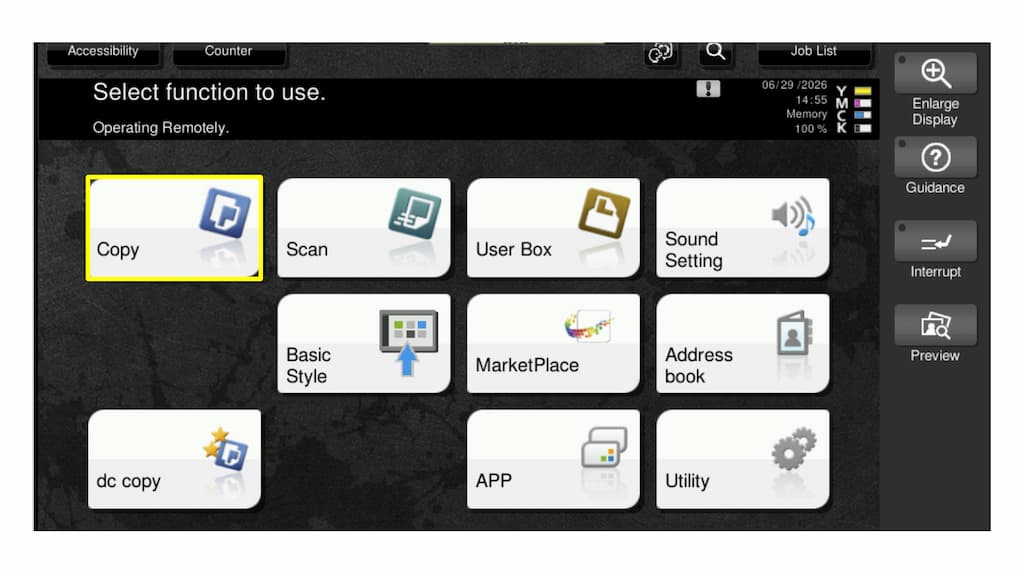
1. From the home screen, touch [COPY]
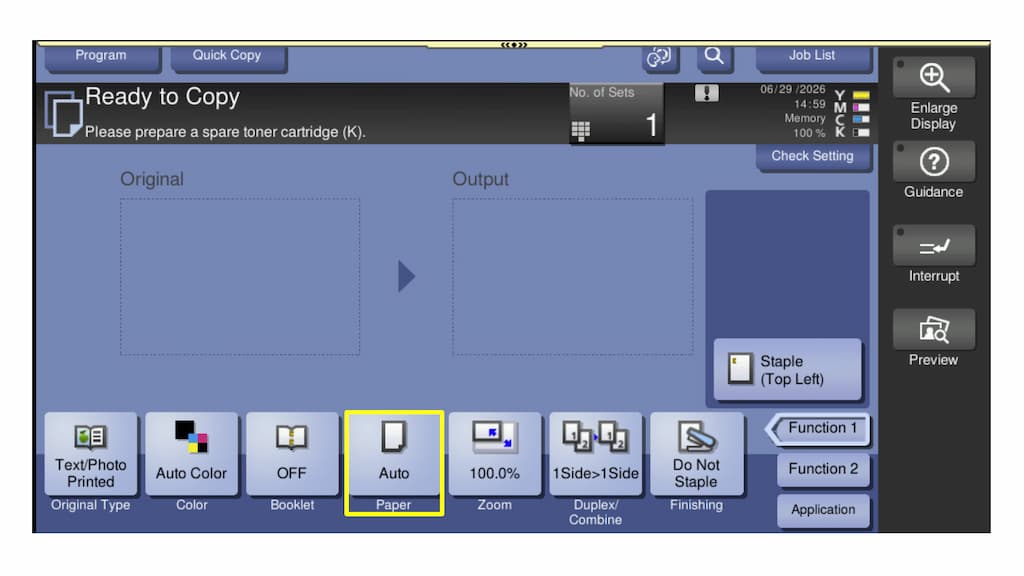
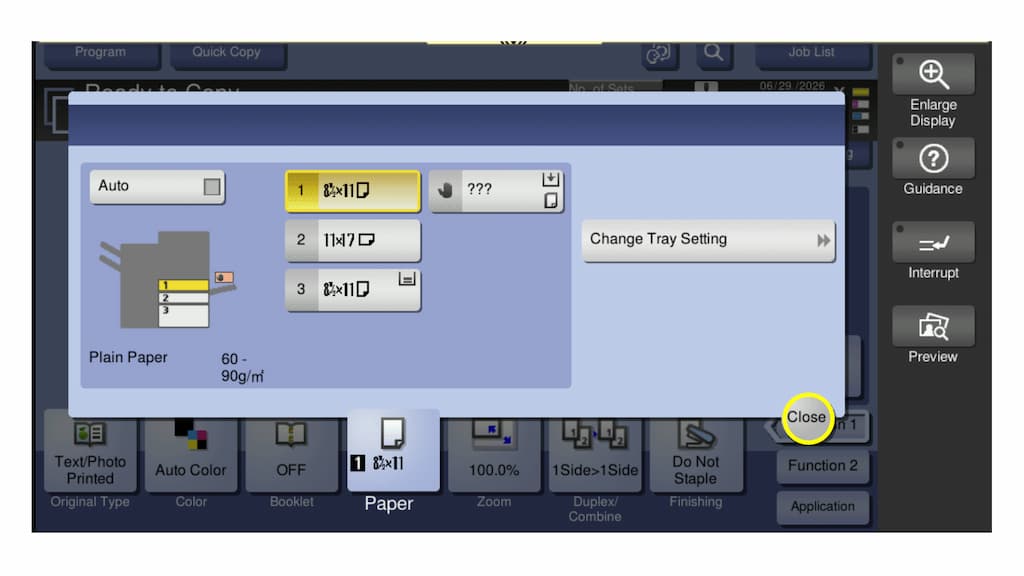
2. Select [PAPER]
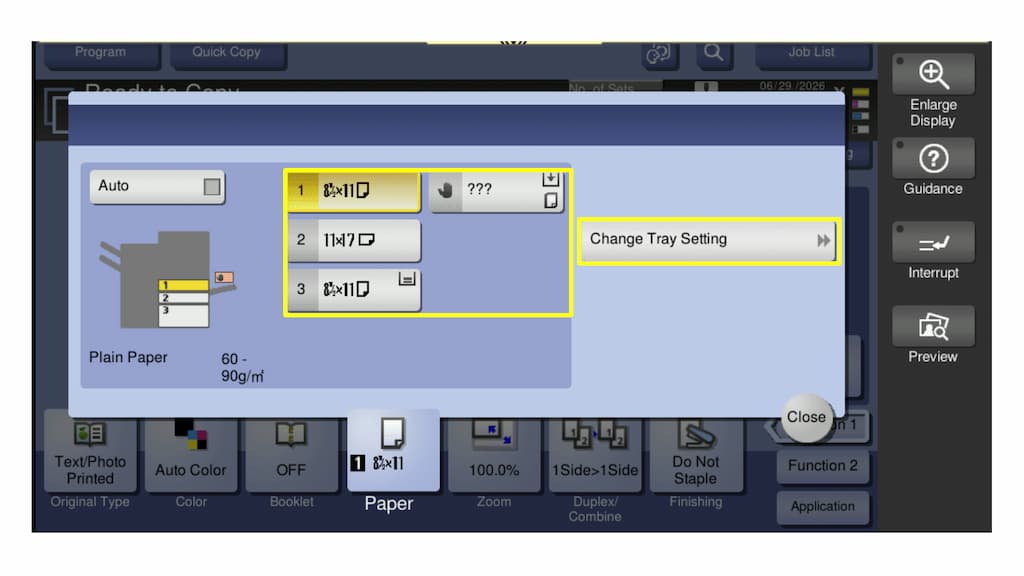
3. Touch the tray that is not printing and then [CHANGE TRAY SETTING]
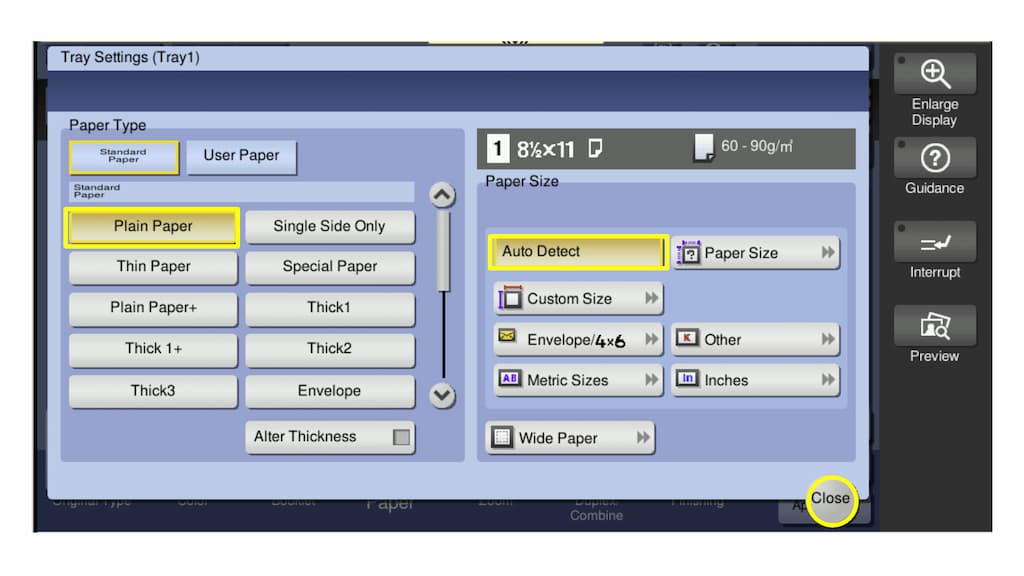
4. Select [PLAIN PAPER] and [AUTO DETECT] and then touch [CLOSE]
5. Touch [CLOSE]
6. Try printing the job again. It should now output without asking to select a paper type/tray.