
Manitoba time change
Effective November 1, 2026, Manitoba will no longer observe seasonal time changes and will remain on the same time year-round. Devices configured to automatically adjust for Daylight Saving Time (DST) may require configuration changes to ensure the correct date and time are maintained. Follow the instructions below to update your device settings.
Before you begin
Before you can adjust the date and time, you will need to know the administrator username and password. If you do not know this, please contact your system administrator.
Choose a time configuration
Two options are available for maintaining the correct date and time on your device following Manitoba’s transition to permanent daylight time.
Option 1: Manual configuration
This method allows the device date, time, and time zone settings to be entered manually.
Option 2: Automatic time synchronization (NTP)
This method allows the device to automatically synchronize its date and time with a Network Time Protocol (NTP) server.
Recommended NTP servers
Note: The copier will need access to the internet or local NTP server to obtain the current time
Step 1: Enter date and time setting
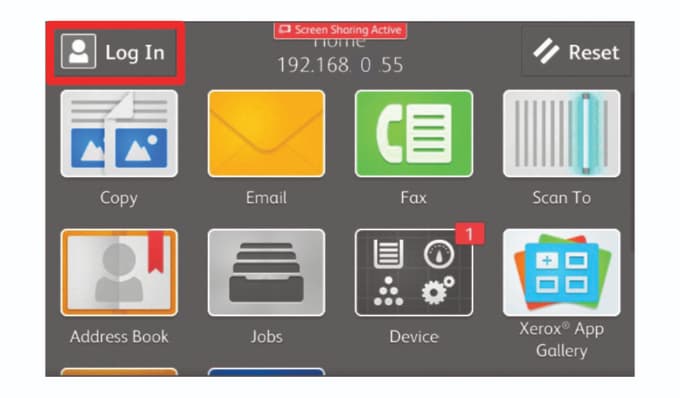
1. Touch [Login] in the top right corner of the screen
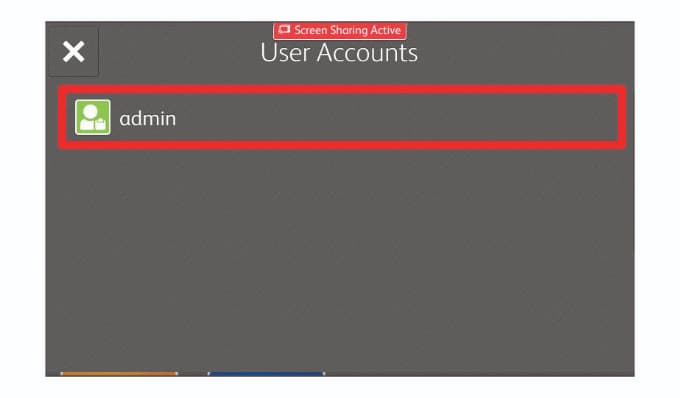
2. Select [Admin]
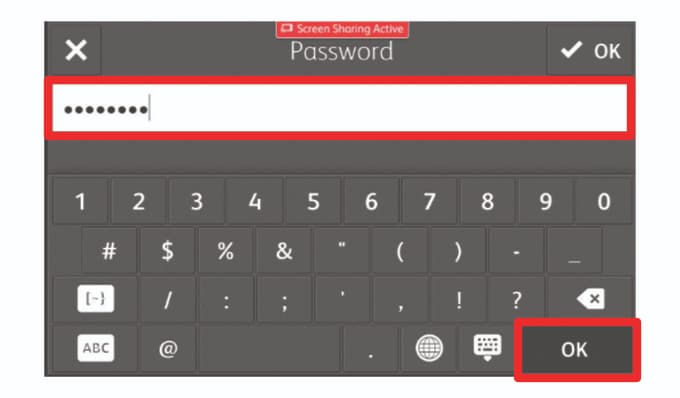
3. Enter the administrator password and touch [OK]
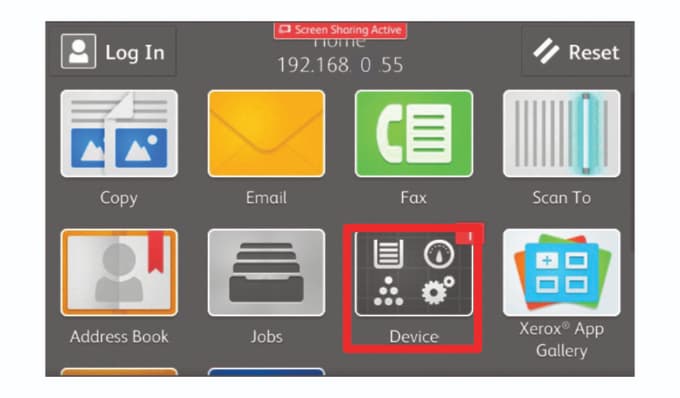
4. Touch [Device]
5. Select [General]
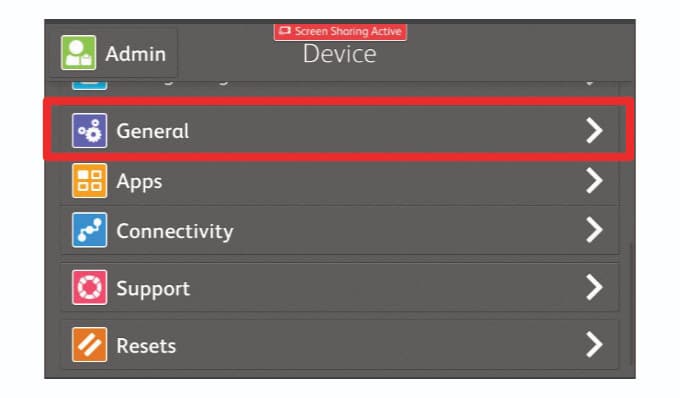
6. Select [Date & Time]
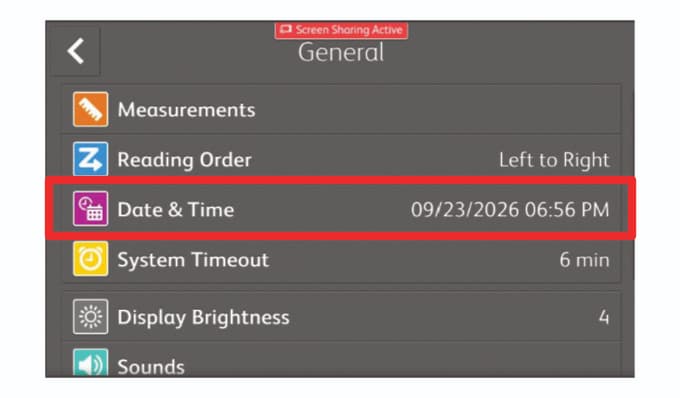
Step 2: Configure date and time
Option 1: Manual configuration
Note: If your date and time are already correct on the machine, jump to step 6 to disable Daylight Saving Time.
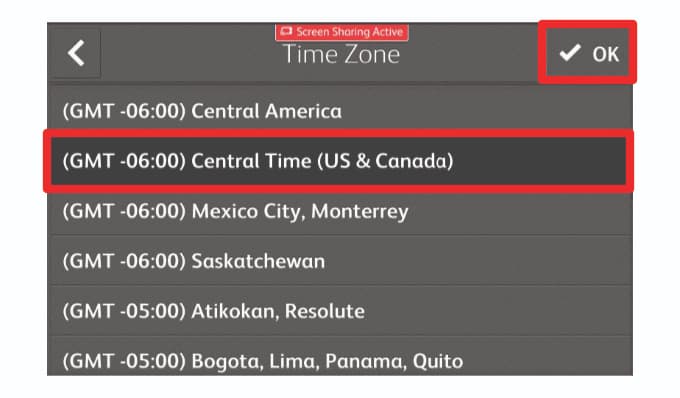
1. Select [Time Zone]
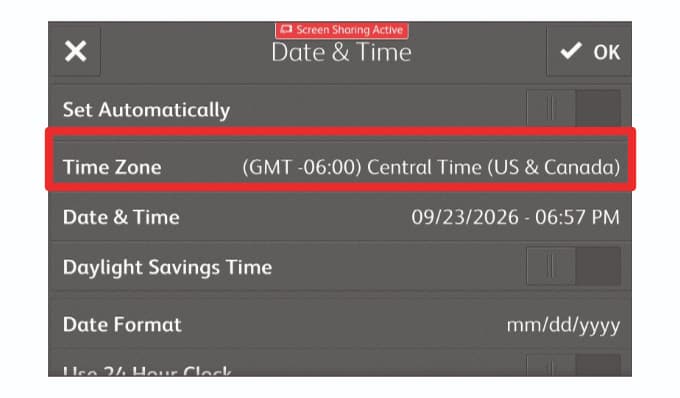
2. Select your region
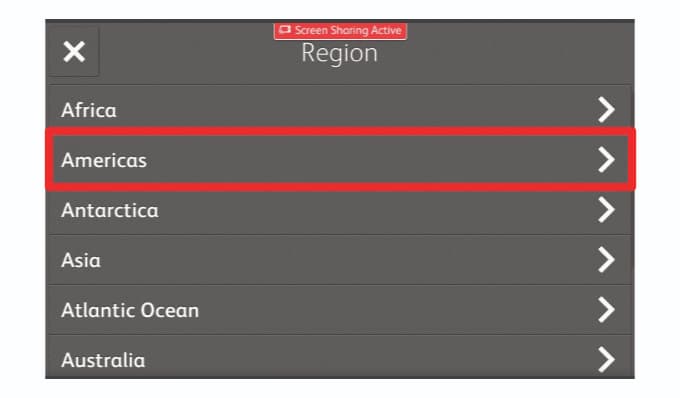
3. Select your time zone and touch [OK]
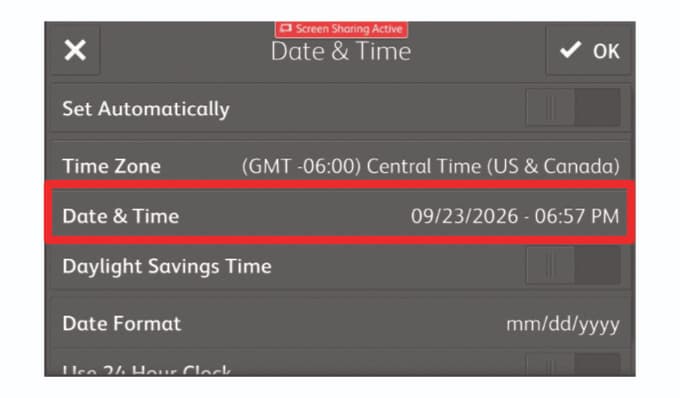
4. Select [Date & Time]
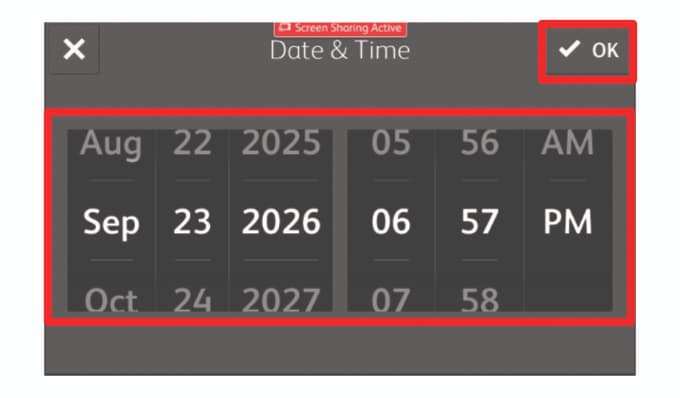
5. Set the date and time and touch [OK]
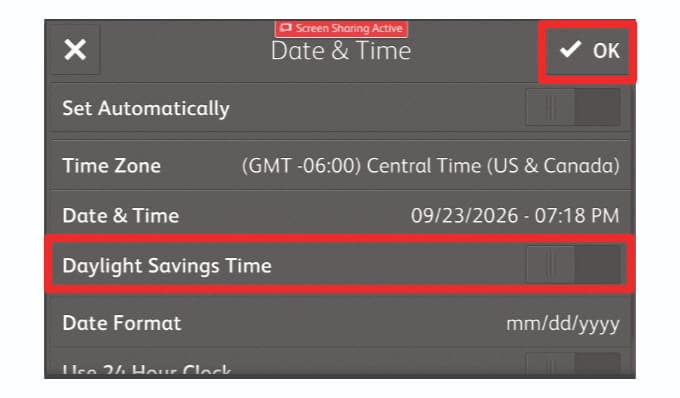
6. Disable [Daylight Saving Time] and touch [OK]
The toggle should be grayed out and to the left
7. Restart the machine
Option 2: Automatic Time Synchronization (NTP)
1. Toggle [Set Automatically] to the ON position
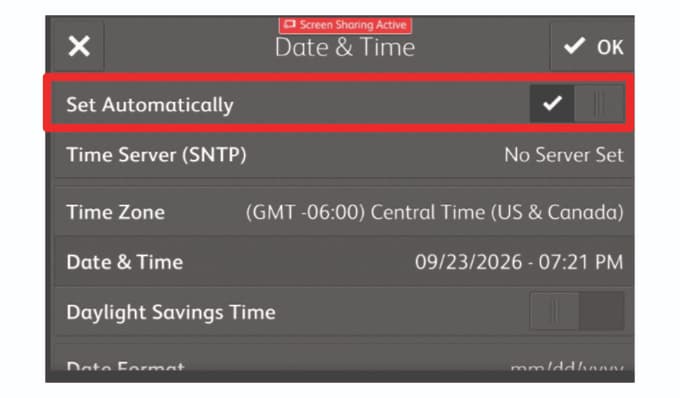
2. Select [Time Server (SNTP)]
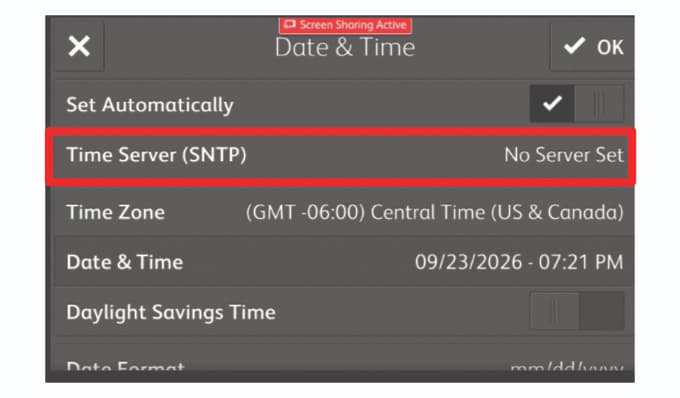
3. Enter the NTP Server address and touch [Enter] and then [OK]
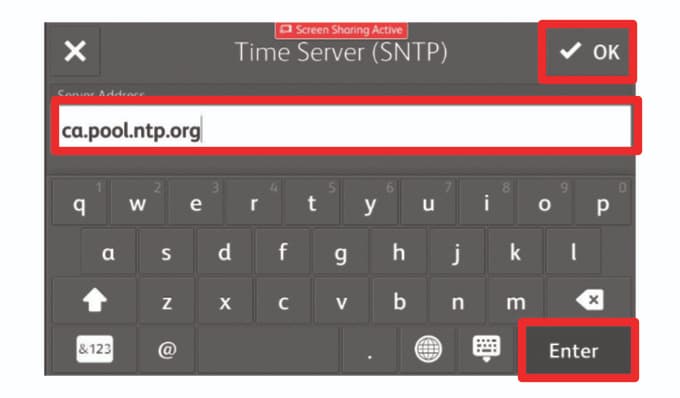
4. Touch [OK]
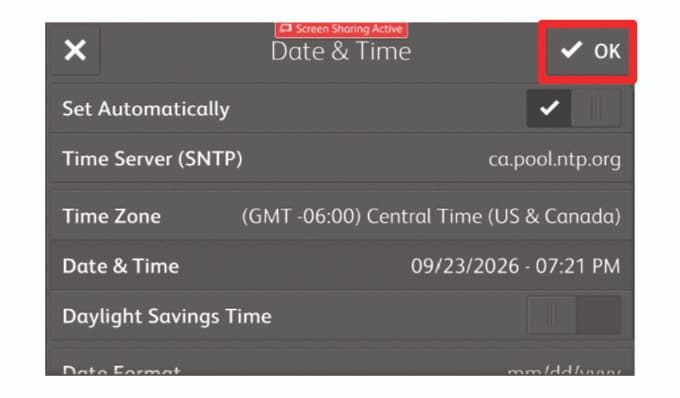
5. Restart the machine