How to re-acquire a token for OAuth 2.0: Microsoft
If your SMTP settings on the copier are using OAuth authentication (which is required for Microsoft and Google now), you may find that you need to re-acquire the security token every once in awhile. When the security token is no longer valid, you will receive an error when sending a scan.
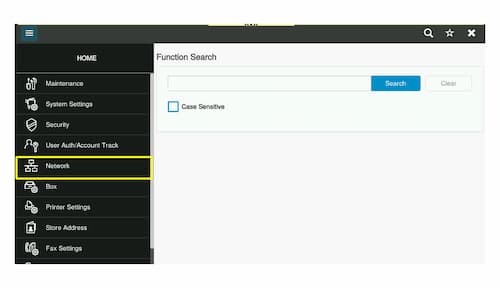
Once logged in as admin, select [Network]
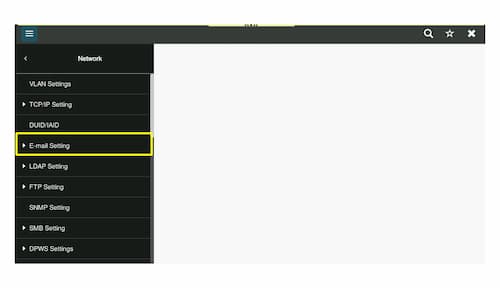
Select [Email Setting]
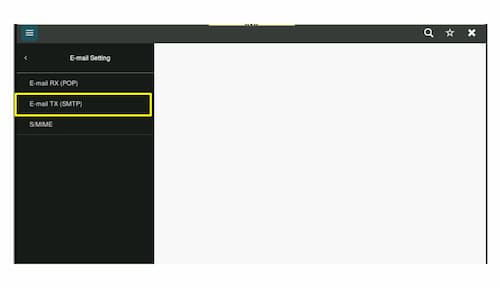
Select [Email TX (SMTP)]
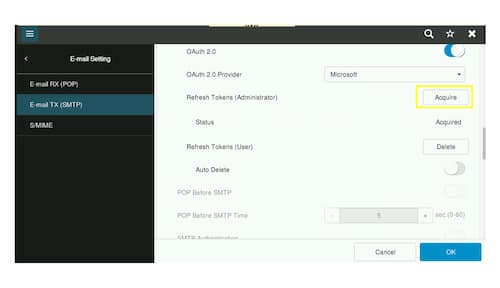
Touch [Acquire]
Enter the password for the email address and touch [Sign In]
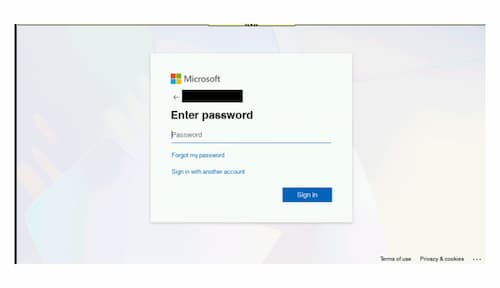
Once the user/email is authenticated, a new token will be issued to the copier
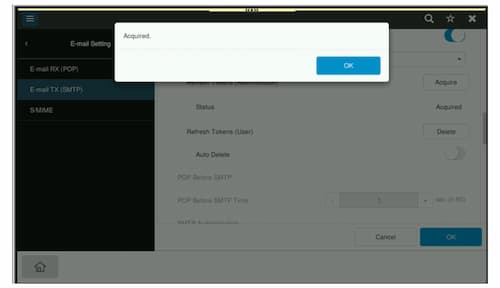
Touch [OK] and log out of admin mode. SMTP should now work. If it does not, try to re-acquire the token (it sometimes takes two attempts). If you continue to have issue, verify that the user/email is allowed to send email via SMTP via the Microsoft 365 Management Centre.